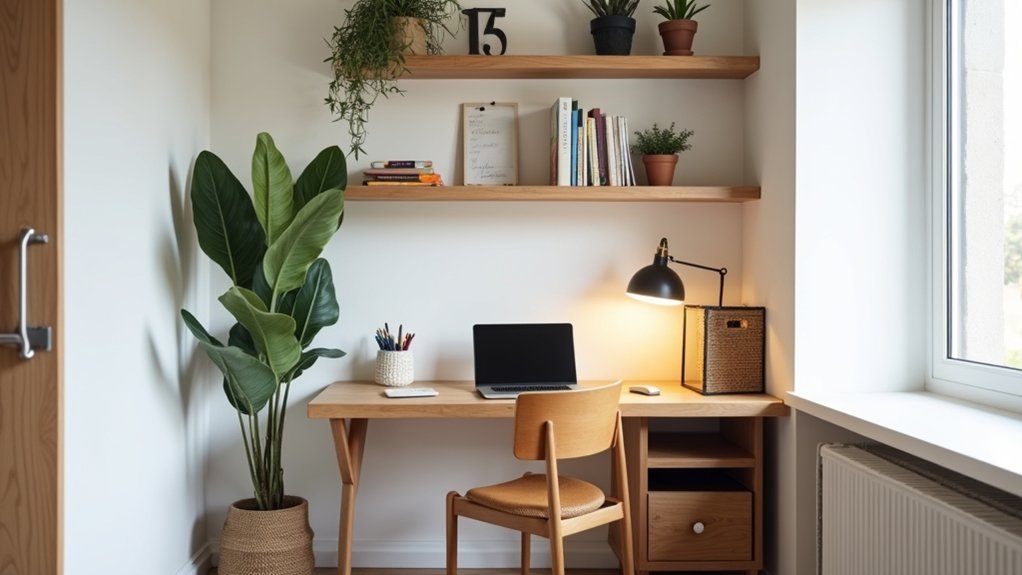
You may notice that the corner you’ve ignored is just large enough for a desk—but fitting one in safely takes more than guesswork. Measure the room, check door swings and walking paths, and note where outlets and daylight fall before choosing furniture. A compact layout can support focused work without blocking access or creating cable hazards. The right sequence of choices can make the difference between a cramped nook and a workspace that truly works.
Key Takeaways
- Measure the room, doors, windows, outlets, and furniture before choosing a desk or chair.
- Place a compact desk in a quiet spot with natural light, minimal screen glare, and clear walkways.
- Choose an adjustable chair and use vertical shelves or pegboards to save floor and desk space.
- Keep screens at eye level, essentials within reach, and cables secured away from walkways.
- Add privacy with a divider or curtains, and keep vents, exits, and heat sources unobstructed.
Measure Your Small Home Office Space
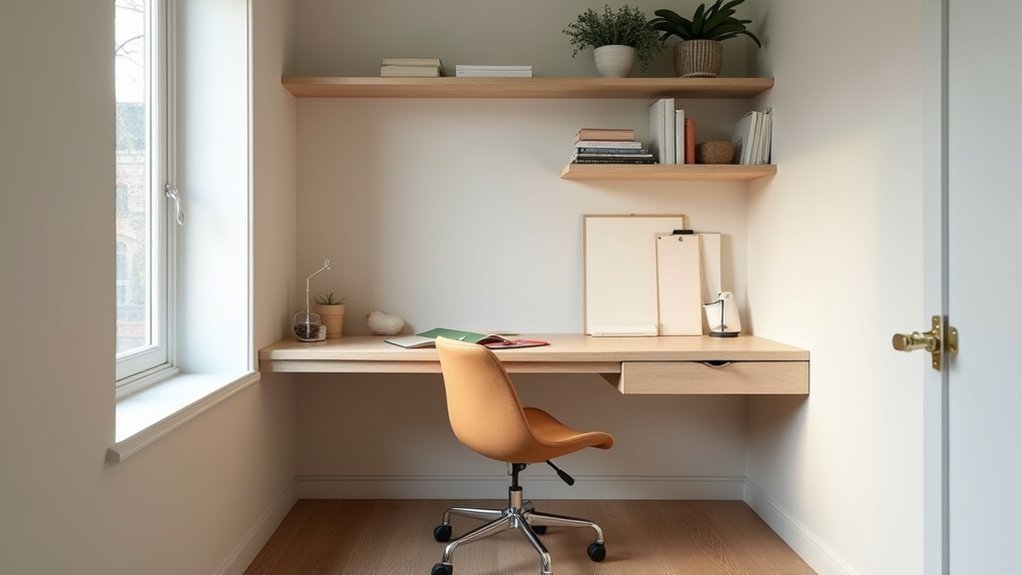
Before choosing furniture, measure the room’s length and width, then note door swings, windows, outlets, radiators, and other fixed features. Record dimensions in inches or centimeters, and sketch the room to scale. Measure ceiling height, too, especially beneath sloped ceilings or near overhead fixtures.
Mark clearances around doors, windows, heaters, and electrical panels; never block exits, ventilation, or access to safety equipment.
Measure each planned item, including desks, chairs, storage, and ergonomic accessories, then compare its footprint with your sketch. Allow enough space to pull out a chair and move safely without striking sharp corners.
Check outlet locations and cable routes to prevent trip hazards. Reserve any remaining capacity for decorative accents only after essential furniture and clearances fit.
Recheck every measurement before buying or assembling items.
Choose a Spot for Your Home Office
Choose a spot that supports focused work while keeping the room’s measured clearances intact. Look for a quiet corner away from high-traffic paths, doors, and household distractions.
Keep your work area clear of heaters, cooking zones, and damp locations to reduce fire and electrical risks. Check nearby outlets and confirm cords can reach without crossing walkways; secure any necessary cables along a wall.
Use natural light when possible, but position your work area to limit screen glare. Compare lighting options, including overhead and task lighting, and make sure switches remain easy to reach.
Consider temperature, ventilation, and privacy throughout the day. Let the location complement your decorating style without blocking windows, vents, or access to storage.
Before settling in, verify that you can enter, exit, and move through the room safely.
Choose a Desk for Your Work and Space
Measure your available space, leaving clear paths to doors, outlets, and walkways.
Choose a desk that supports your tasks, such as monitor use or writing, without crowding the room.
Check its storage capacity and keep drawers and shelves from blocking safe movement.
Measure Your Available Space
To choose a desk that fits both your work and your room, note the available width and depth, including space for chair movement and clear access to doors, windows, and outlets. Measure the wall and floor area, then mark the desk’s footprint with painter’s tape.
Pull your chair back fully to confirm you can sit and stand without hitting furniture or blocking a walkway. Check baseboards, radiators, window trim, and door swings; these can reduce usable space.
Leave room to reach plugs safely, without stretching cords across paths. If you’re considering a corner, measure both walls and account for any uneven angles.
Record your measurements before shopping, and compare them with each desk’s dimensions, including legs and overhangs. This gives you a reliable fit without compromising safe movement or access.
Match Desk to Tasks
Once you’ve confirmed what fits, match the desk to the work you do most. If you use a laptop, a compact surface may suffice, but leave room for a mouse and writing materials.
For detailed tasks, choose a desk deep enough to position your screen about an arm’s length away while keeping your wrists straight.
Check the height: your elbows should rest near a 90-degree angle, with feet flat on the floor.
Add ergonomic accessories, such as a monitor riser or adjustable keyboard tray, only if they improve alignment without crowding the work surface.
Before buying, verify the desk’s weight rating and stability, and avoid sharp corners in tight walkways.
Keep decorative accents minimal so they don’t obstruct equipment, cables, or your clear working area.
Consider Storage Needs
Choose storage based on what you need within reach, not on how many drawers a desk offers. List the supplies and documents you use daily, then select storage solutions that fit them without crowding your work surface. A shallow drawer can hold pens and cables; a shelf or vertical file can keep reference materials accessible while preserving floor space.
Measure the desk area and check drawer clearance before buying. Make sure drawers won’t block a doorway, heater, or chair movement, and secure tall units to a wall to prevent tipping. Keep heavy items in lower drawers to improve stability and reduce lifting strain.
Store rarely used supplies elsewhere, and use labeled containers to support clutter reduction. Leave frequently handled items within easy reach, but keep cords and sharp tools contained so they don’t create trip or injury hazards.
Add a Comfortable Chair That Fits
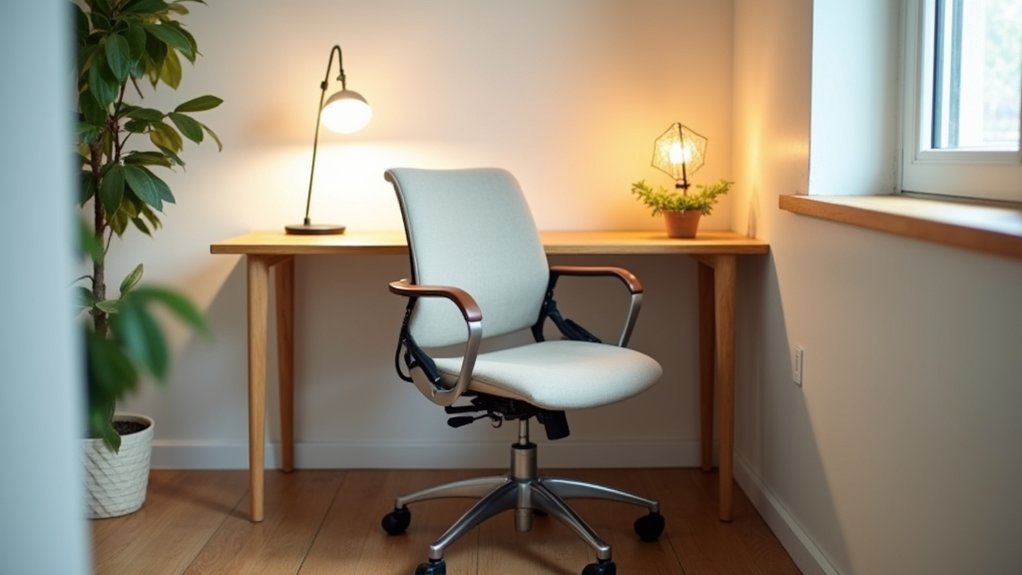
A well-fitted chair supports your posture without crowding a small home office. Measure your available floor area before you shop, including room to pull the chair back and turn safely. Choose a compact model with adjustable seat height so your feet rest flat and your knees stay near a right angle.
Ergonomic comfort also depends on lumbar support: adjust the backrest to meet your lower back, and keep your shoulders relaxed while typing. If you can, test the chair for several minutes; a seat that feels firm and stable usually works better than one that’s overly soft.
Look for stylish seating that suits your room without sacrificing function. Check the chair’s weight capacity, base stability, and caster type; use locking casters or a floor mat if it rolls on a hard surface. Keep pathways clear.
Use Vertical Storage to Clear Your Desk
When desk space is limited, move supplies upward with wall-mounted shelves, pegboards, or a narrow bookcase. Wall mounted shelving keeps frequently used items within reach while freeing your work surface. Before installation, locate wall studs or use anchors rated for the shelf’s expected load. Keep heavy books on lower shelves, and don’t place storage where it could fall onto your chair or keyboard.
Use pegboard hooks or small bins to organize cables, tools, and stationery. Secure each accessory so it won’t shift when you remove an item. Vertical drawer organizers can sort papers and supplies inside a cabinet without taking up desk space. Label compartments to find what you need quickly, and avoid overfilling them.
Leave clear access to drawers and shelves, and check fasteners periodically for looseness. A stable setup protects your equipment and keeps the desktop usable.
Plan Natural and Task Lighting
Position your desk near a window to use daylight without letting glare wash out your screen. Angle your monitor perpendicular to the glass, and add a shade you can adjust as sunlight shifts. This setup reduces reflections and helps you maintain comfortable visibility throughout the day.
For evening work, layer an ambient glow with focused task illumination. Choose a shaded desk lamp with an adjustable arm, and aim its beam at your work surface rather than your eyes or screen.
A warm, dimmable overhead light can soften contrast between the desk and the rest of the room. Match brightness to the task, and avoid sharp transitions that can strain your eyes.
Keep lamps stable, place them clear of paper stacks and curtains, and use bulbs within each fixture’s rated wattage. Check that switches remain easy to reach without stretching across your workspace.
Manage Cords and Tech in Your Office
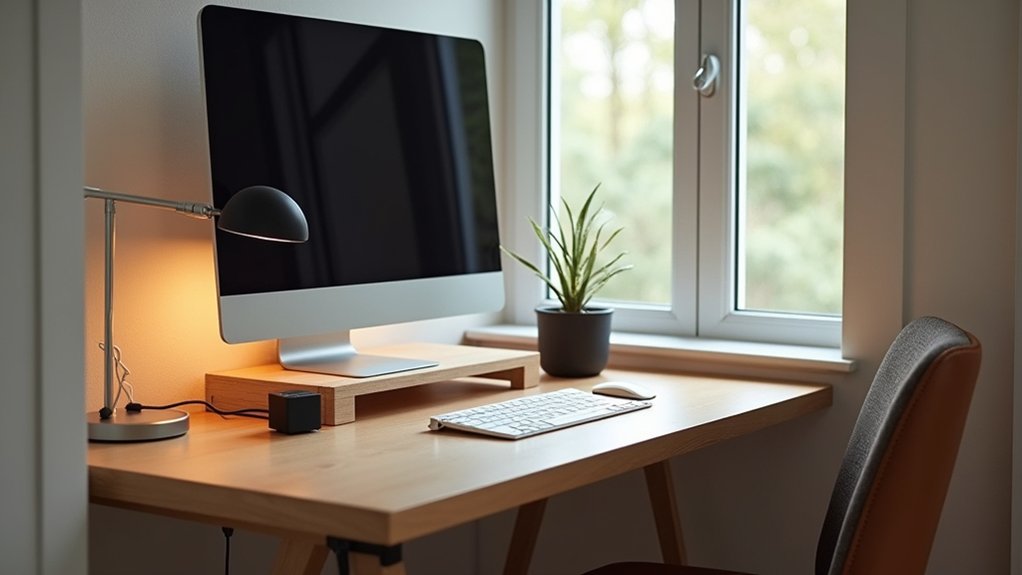
Route cords through clips or a cable sleeve to keep them off walkways and reduce trip hazards.
Group chargers and peripherals by function, and label each cable so you can identify it quickly.
Keep power strips ventilated and within reach, and don’t overload them.
Conceal Cords
A tangle of cords can make a small office look cluttered and create trip or fire hazards. Start with cord management by tracing each cable from its device to the outlet. Unplug equipment before rearranging cords, and don’t run cables beneath rugs, where heat can build up unnoticed.
Use cable concealment products, such as an under-desk tray, adhesive clips, or a cord cover, to keep wires off the floor and away from chair wheels. Secure loose runs along desk legs, but don’t pull cables tight; leave enough slack to prevent strain at plugs and ports.
Keep power cords separate from data cables when practical to reduce interference. Avoid overloading outlets or daisy-chaining power strips. Choose listed products rated for your electrical load, and keep plugs accessible so you can disconnect them quickly.
Organize Tech
Group the devices you use most—such as your monitor, laptop, and charger—within easy reach, and store occasional-use tech elsewhere to free up desk space.
Position your screen at eye level and keep your keyboard and mouse close enough to prevent reaching.
Choose compact wireless devices to reduce desk clutter, but check battery levels regularly so you’re not caught without power.
Place a charging station on a stable surface, away from liquids and heat sources.
Use a surge-protected power strip rated for your equipment, and don’t daisy-chain extension cords.
Keep vents clear around laptops, docks, and routers to prevent overheating.
Store spare cables and adapters in labeled containers so you can find the right item quickly.
Add ergonomic accessories, such as a monitor riser or wrist rest, only when they improve fit without crowding your workspace.
Add Privacy to a Shared Room or Nook
When your office shares a room or occupies a nook, a few well-chosen barriers can create privacy without blocking light or airflow. Choose Privacy screen options such as a freestanding folding divider, ceiling-mounted curtain, or open shelving unit. Check the screen’s height and footprint so it shields your monitor without narrowing walkways or blocking exits.
Secure tall or heavy units to a wall to prevent tipping, and keep fabric clear of heaters and lamps.
For calls, combine Soundproofing techniques: add a thick rug, hang dense curtains, or place acoustic panels on nearby walls to reduce echoes and limit noise transfer. These measures won’t fully isolate sound, so schedule sensitive conversations when household activity is low.
Leave vents unobstructed, route cords away from footpaths, and use stable, low-profile barriers where children or pets might bump into them. Test the setup from both sides before relying on it.
Personalize Your Office Without Clutter
Personal touches can make a small office feel inviting, but keep the work surface clear and usable. Choose one or two Decorative accents, such as a small framed print or a compact plant, and place them on a shelf or wall rather than beside your keyboard. This keeps tools within reach and reduces the risk of spills or knocked-over objects.
Display Personal memorabilia selectively: use a single photo, a slim pinboard, or a narrow ledge, not several items scattered across the desk. Secure wall-mounted pieces with hardware rated for the wall type, and keep them clear of vents, outlets, and task lighting.
Avoid heavy objects above your chair or monitor. If you add a lamp or powered display, route cords along a wall and leave walkways unobstructed. Review the arrangement regularly; remove anything that collects dust or interferes with work.
Frequently Asked Questions
How Can I Reduce Distractions While Working From a Small Home Office?
Reduce distractions by silencing notifications, setting work hours, and keeping your desk clear. Use noise reduction with headphones or door seals, and apply lighting optimization to prevent glare. Secure cords to avoid trip hazards while working.
What Colors Make a Small Home Office Feel More Spacious?
Choose soft whites, pale blues, or light greens; they reflect light and make your office feel larger. Use Color psychology and Visual illusions: paint walls and trim similarly, and test samples under your lighting before painting.
How Can I Create a Work-Life Boundary When My Office Is at Home?
Treat your workday like a door you close: set firm start and stop times, silence work alerts after hours, and use office furniture and privacy solutions to separate tasks safely from home life.
What Plants Are Suitable for a Small Home Office?
Choose compact Indoor greenery such as pothos, snake plants, or ZZ plants; these Low maintenance plants tolerate varied light. Check toxicity before placing them near pets or children, and use pots with drainage to prevent mold.
How Often Should I Take Breaks When Working From Home?
Take a five-minute break every 30 minutes, or a 15-minute break every two hours. Stand, move, and rest your eyes; ergonomic furniture and lighting solutions help, but they don’t replace regular breaks or safe movement.
Conclusion
A small home office works when every choice supports comfort, focus, and safe movement. Measure first, then fit your desk, chair, storage, lighting, and technology to the space you have. Keep cords secured, pathways clear, and shelves anchored so your setup stays safe as well as efficient. Add only personal items that help you feel at ease. Treat your office like a well-tuned instrument: maintain it regularly, and it’ll support productive work without crowding your home.